


Denon DJ SC3900 - Setup in Traktor Pro
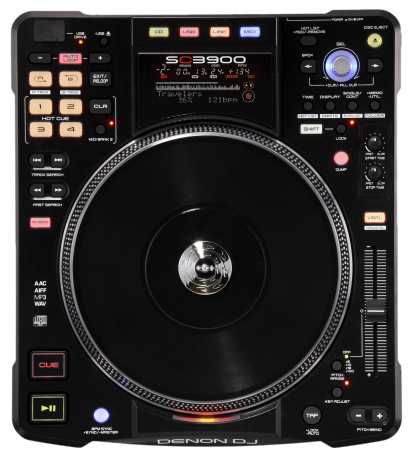 Utilizing a completely redesigned High-Torque Direct Drive Motor that exactly mirrors the feel of vinyl, the SC3900 brings home that familiar feel but with the choice of CD, USB, Software, or even a networked Media server as your source of tracks. This article walks through how to set up the DN-SC3900 in Traktor Pro 2.
Contents
- Getting the Traktor Mapping File
- Checking the Settings on the Hardware
- Setting up the DN-X1600
- Setting up the input sources for each channel
- Putting the DN-X1600 in USB Mode
- Loading the .TSI file into the Traktor program
- Further Technical Support
Get the Traktor Mapping File
This section walks through the basic setup using the TSI MIDI mapping file while in the Hybrid midi mode
To obtain the file, visit the SC3900 product page. The Traktor mapping file is in the Downloads section.
- Once downloaded, if using a Windows PC, make sure you extract the folder. To do this right-click on the folder an select Extract All...
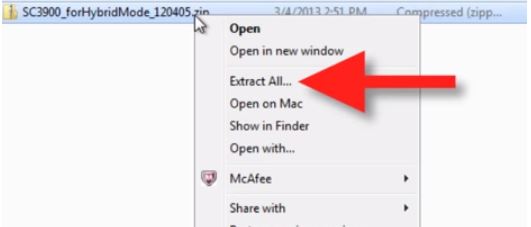
- Once extracted, right-click on the TSI file and choose Copy
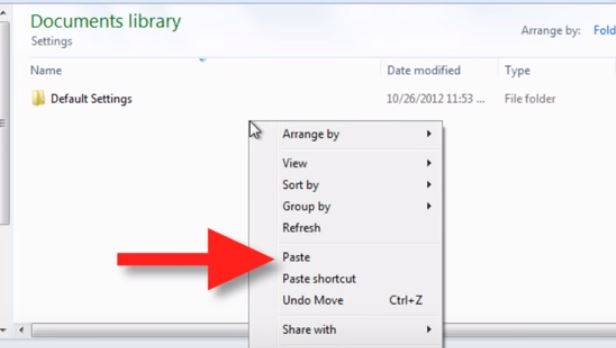
- You will now need to paste the mapping file in the settings folder of the Traktor program
- To do so, click on Documents
- Select Native Instruments
- Then select Traktor
- Then Settings
- Then Paste the TSI file there
On a Mac
- Go to Downloads
- Right click on the TSI file and choose Copy
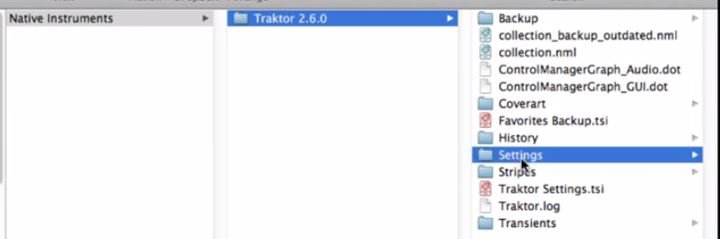
- Go to Documents
- Select Native Instruments
- Select Traktor
- Select Settings
- Paste the TSI file
Checking the settings on the hardware
The settings that need to be checked are in the preset menu. To enter the preset menu:
- Press and hold the utility button
- Then turn the select knob to the right to display the preset settings.
When FS is displayed, press the knob in to enter and select the sample rate you want to use.
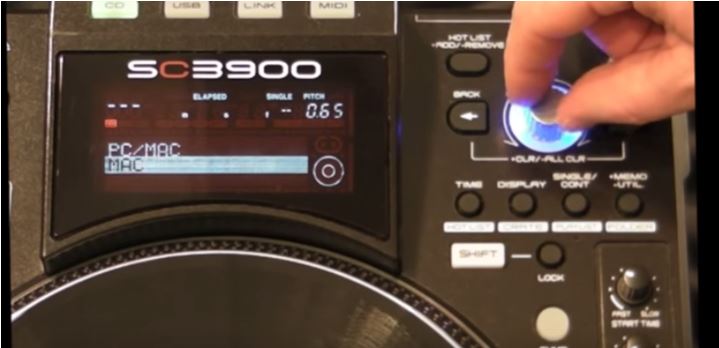
- Scroll through until you see the PC/MAC displayed press and release the knob
-
Then scroll left or right to select the platform you are using
-
Press down on the knob to select the platform you are using
- Turn the knob to the right to select the midi channel and select 1 for your left SC-3900
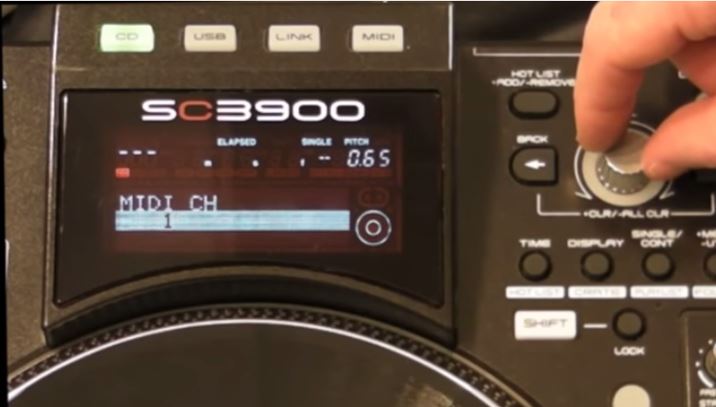
- Select midi channel 2 for the right
- Press down again to go into the Hybrid MIDI Mode
- You will want to select the 2.5kHz, press down to select it
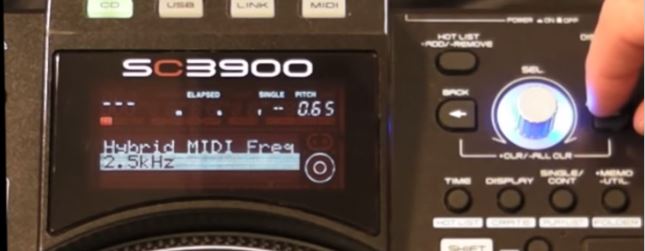
- Then press and release the utility button to save the changes.
Set up the DN-X1600
- On the DN-X1600 press and release the Utility button to enter the utility menu
- Then scroll using the FX knob till you see System
- Press the knob in once when FS is displayed to select the sample rate you want to use
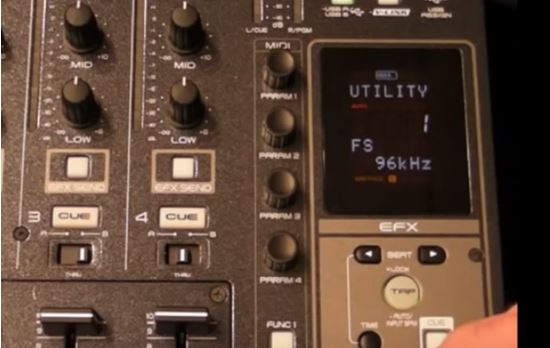
- Scroll until you see the PC/Mac setting and select the platform you are using
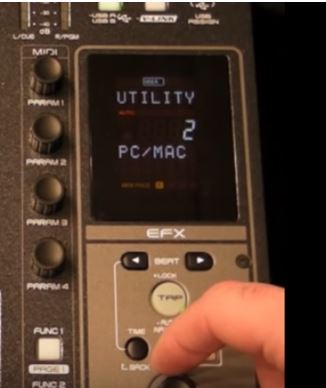
- Press and release the utility button to save the changes here as well.
Set up the input sources for each channel
- Set channel 1 to Preset 1, set channel 2 to Preset 2, channel 3 to USB 5/6, channel 4 to USB 7/8
- Connect both the SC3900’s and the DN-X1600 to the computer
- Connect the SC3900’s from the line outputs to the inputs on the DN-X1600
- Then connect the Master Out to your speakers or sound system
- Set both of the SC3900’s to the Hybrid MIDI mode, by pressing the MIDI button and turning the knob to the right to display Hybrid
- Then press down on the knob to select.
To check if the device is connected on a Mac:
-
- Spotlight Search for Audio MIDI Setup
- Click on Window in the top left of your screen
- Select Show MIDI Studio
- Your device should be displayed in there if connected properly.
- Spotlight Search for Audio MIDI Setup
To check to see if the device is connected on a PC:
-
- Go to your Control Panel
- Select Device Manager
- Navigate and expand the Sound, video and game controllers
- if it shows your product there it is installed correctly.
- Go to your Control Panel
Put the DN-X1600 in USB Mode
Press and hold the utility button until Device is displayed. Turn the knob to select OK and press it in to enter.
If using a PC:
-
- Open the ASIO driver to make sure it sees the DN-X1600, and that it is enabled.
If using a MAC:
-
- Open the Audio MIDI Setup
- Click on Show Audio Window
- Select the DN-X1600 and make sure the Format section is set at the same rate you selected earlier.
- Then click on Output, Configure speakers, and select Multichannel.
- Finally, select the dropdown menu and choose Octagonal, click Apply, and then Done.
Load the .TSI file into the Traktor program
- Open Preferences, click on Inputs, double-click on the DN-SC3900 file to select, and then hit OK to close the window
- Next, confirm the Audio setup, (if on a MAC select the DN-X1600), and make sure the sample rate is the same as above
- For the Outputs, select Mixing Mode and set it to External
- Set Deck A to 1-2
- Set Deck B to 3-4
- Set Deck C to 5-6
- Set Deck D to 7-8
- Then click on Input Routing
- Set Deck A to 1-2
- Set Deck B to 3-4
- Next, if on a PC, select the Denon DJ ASIO driver for the device. Ensure that the sample rate is the same value as above. All of the input and outputs will be the same as with the MAC setup for the decks.
- Click Close when all the setup is complete.
You will now be able to use all of your hardware with the Tractor Pro 2 Software!
For additional mapping information, go to the PDF inside the downloaded zip file and it will have a list of all the mappings in there.
Further Technical Support
Whether you are a customer or dealer, if you already own a Denon DJ product, or if you just have pre-sales questions, the Denon DJ technical support team is available to help! Visit the link below to connect with any of the following support options: online community support, phone support, email support.